Document Notes
Use document notes to leave an explanation, reminder, or comment attached to part of your document. Notes appear as cards on the right of the page, with a dashed line connecting each card to its content. The attached content is highlighted so you can find it again.
Add a note
Section titled “Add a note”- Select the text, math, or drawing content you want to annotate.
- Choose one of these actions:
- Click the Add note icon
 in the left insertion panel or at the end of the text or math toolbar.
- Right-click your selection and choose Note.
- Press ⌘ + Option + M on Mac, or Ctrl + Alt + M on Windows/Linux.
- Click the Add note icon
- Type your note in the card that opens beside the page.
- Click the checkmark (Save note) to save it and return to the compact card.
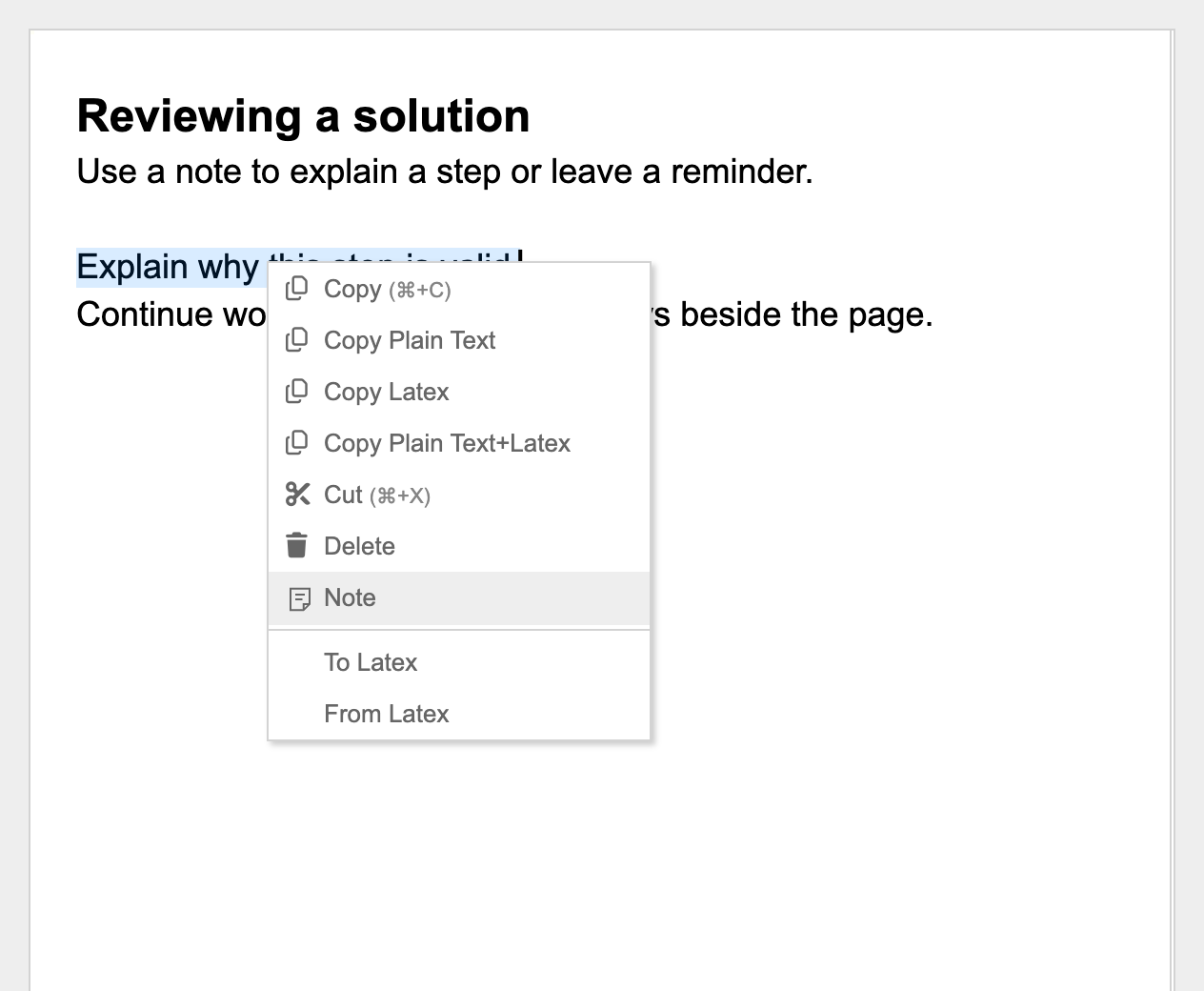
Select content before adding a note. A note needs some text before it can be saved. An empty card showing Add a note… is a prompt, not saved note text.
Read and edit notes
Section titled “Read and edit notes”Click a card to open it. Notes stay on the right and scroll with the document. When several notes are close together, their cards stack vertically. You can scroll horizontally to reach the cards when the window is narrow.
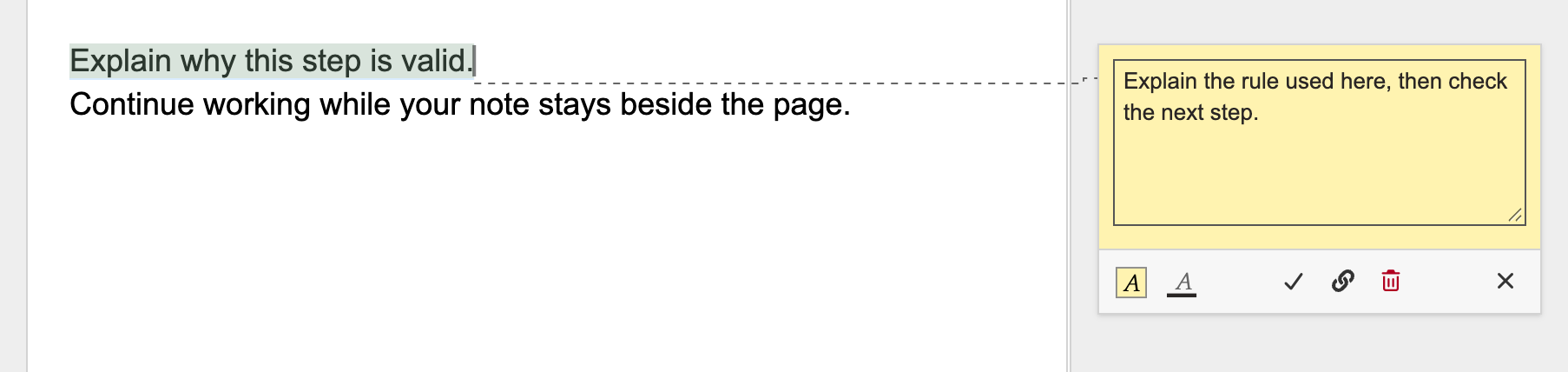
The toolbar at the bottom of an open card contains these actions. Hover over an icon to see its name.
| Action | What it does |
|---|---|
| Background color | Changes the note card’s background. |
| Text color | Changes the note card’s text color. |
| Checkmark — Save note | Saves the note text and colors, then closes the editor. |
| Link — Reattach | Moves the note’s attachment to your current selection. |
| Trash — Delete note | Removes the note and its highlight without deleting document content. |
| Cross — Close note | Returns to the compact card without saving your latest changes. |
Card colors affect the note only. They do not change the selected document text or math. Save after editing the note or changing its colors.

Notes on math, tables, and drawings
Section titled “Notes on math, tables, and drawings”You can select text in Text Mode or content in Math Mode, including parts of a formula such as a fraction numerator, root, or matrix cell. Notes also work on text or math inside table cells and exercise blocks.
For drawings in the main document:
- Select one or more drawing objects to attach a note to those objects.
- Select the drawing background to attach a note to the whole drawing.
- Select text or math inside a drawing label to attach a note to that selected content.
Add notes from the main document. Note controls are unavailable in the full-screen drawing editor and in embedded fields such as print headers and footers. Existing notes remain attached when you edit a drawing in full screen and save it back.
Move an attachment or recover a detached note
Section titled “Move an attachment or recover a detached note”Notes follow their attached content as you edit. If you delete all of a note’s attached content, the note remains available as a detached note.
To attach it somewhere else:
- Open the note you want to move.
- Select the new text, math, drawing, or drawing objects in the document.
- Click the link icon (Reattach) in that note’s toolbar.
The note keeps its text and colors. You can also reattach a note whose original content is still present.
Undo and redo
Section titled “Undo and redo”Adding, saving, deleting, and reattaching notes are part of the document’s undo/redo history. Undoing a saved edit restores the previous note text and colors; undoing deletion restores the note and its attachment. Use the usual Undo / Redo controls or shortcuts.
Sharing, saving, and printing
Section titled “Sharing, saving, and printing”Notes are saved with the document and included in native .mathcha document exports. People you share the document with can see its notes; notes are not private to their author. A read-only viewer can read notes but cannot add, edit, delete, or reattach them.
Notes are not included in ordinary copied content, printing, or nonnative exports such as LaTeX and images. Printing notes is not supported.