Exercise
An Exercise keeps a question, an optional hint, and a worked solution together. Write the content once, then prepare a student worksheet, a worksheet with hints, or a teacher answer key.
Example: Teacher Answer Key
Section titled “Example: Teacher Answer Key”This teacher print version contains two complete exercises: solving a quadratic equation and evaluating a definite integral. It includes the marks, hints, and worked solutions, with no student writing space.
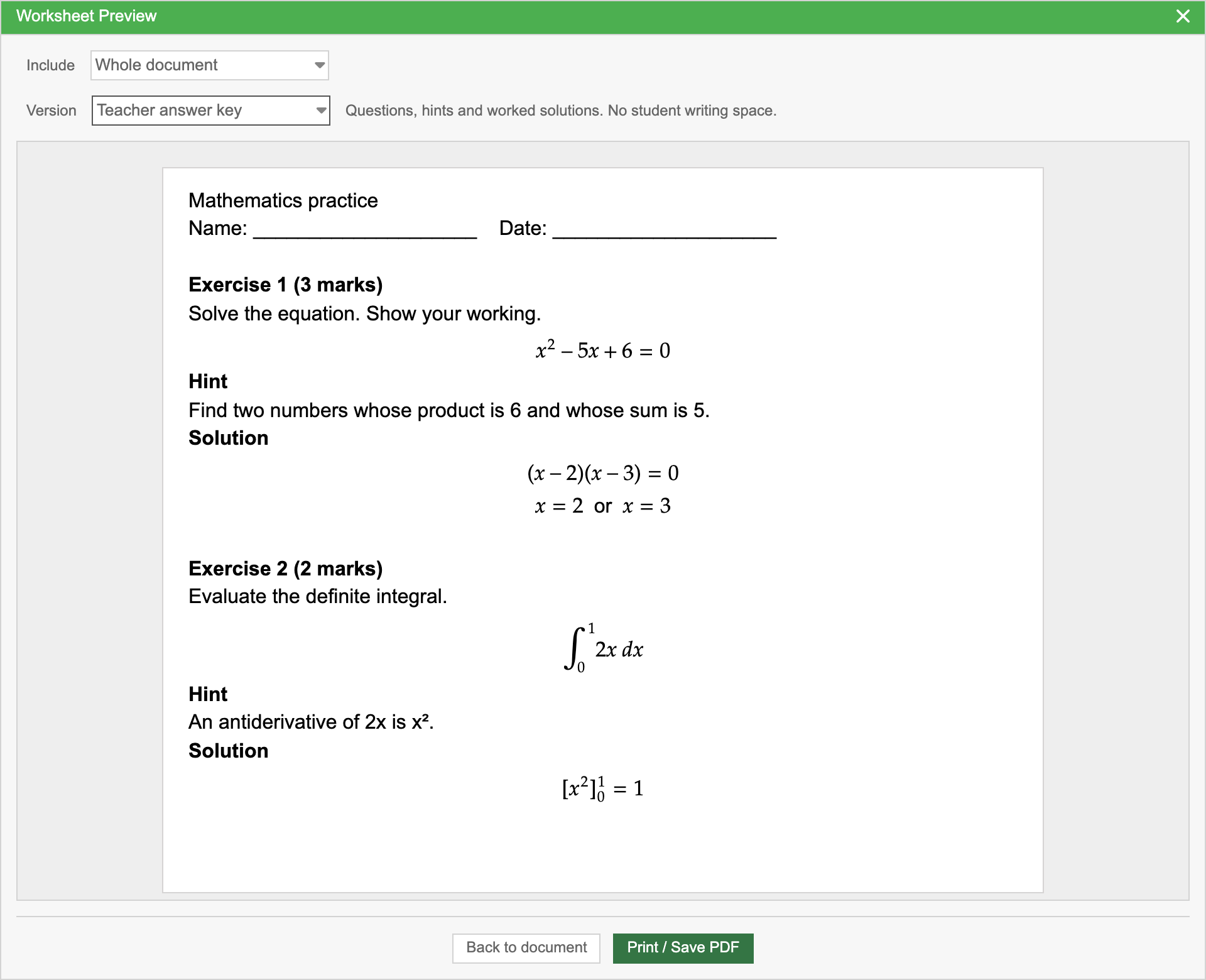
From the same document, you can also prepare a student worksheet without hints or solutions, or a worksheet with hints.
Insert an Exercise
Section titled “Insert an Exercise”- Place your cursor in the main document text.
- Type
\exerciseand choose Exercise from the suggestion box. - Enter your question in Question.
- If needed, add a Hint and a Worked solution.
Each section supports the usual text formatting, mathematics, images, tables, and diagrams. For a question with multiple parts, use an ordered list inside Question.
Exercises are numbered automatically in document order: Exercise 1, Exercise 2, and so on. The numbers update when you insert, remove, copy, or rearrange exercises.
An Exercise must be inserted at document level, outside other components. Exercises cannot be nested inside another Exercise.
Select and Edit an Exercise
Section titled “Select and Edit an Exercise”Click inside an Exercise to select it. Boxes outline the Question, Hint, and Worked solution text areas. There is no outer box around the whole exercise, and its content stays aligned with the surrounding document text.
Two icon buttons appear above the exercise’s upper-right corner:
| Button | Action |
|---|---|
| Print exercise — printer icon | Opens Worksheet Preview for student worksheets, worksheets with hints, or teacher answer keys. |
| Exercise settings — cog icon | Opens the settings bar for marks, answer lines, and worksheet labels. |
When you move into another exercise or other document text, the text-area boxes and buttons disappear. An open settings bar also closes.
Not Selected
Section titled “Not Selected”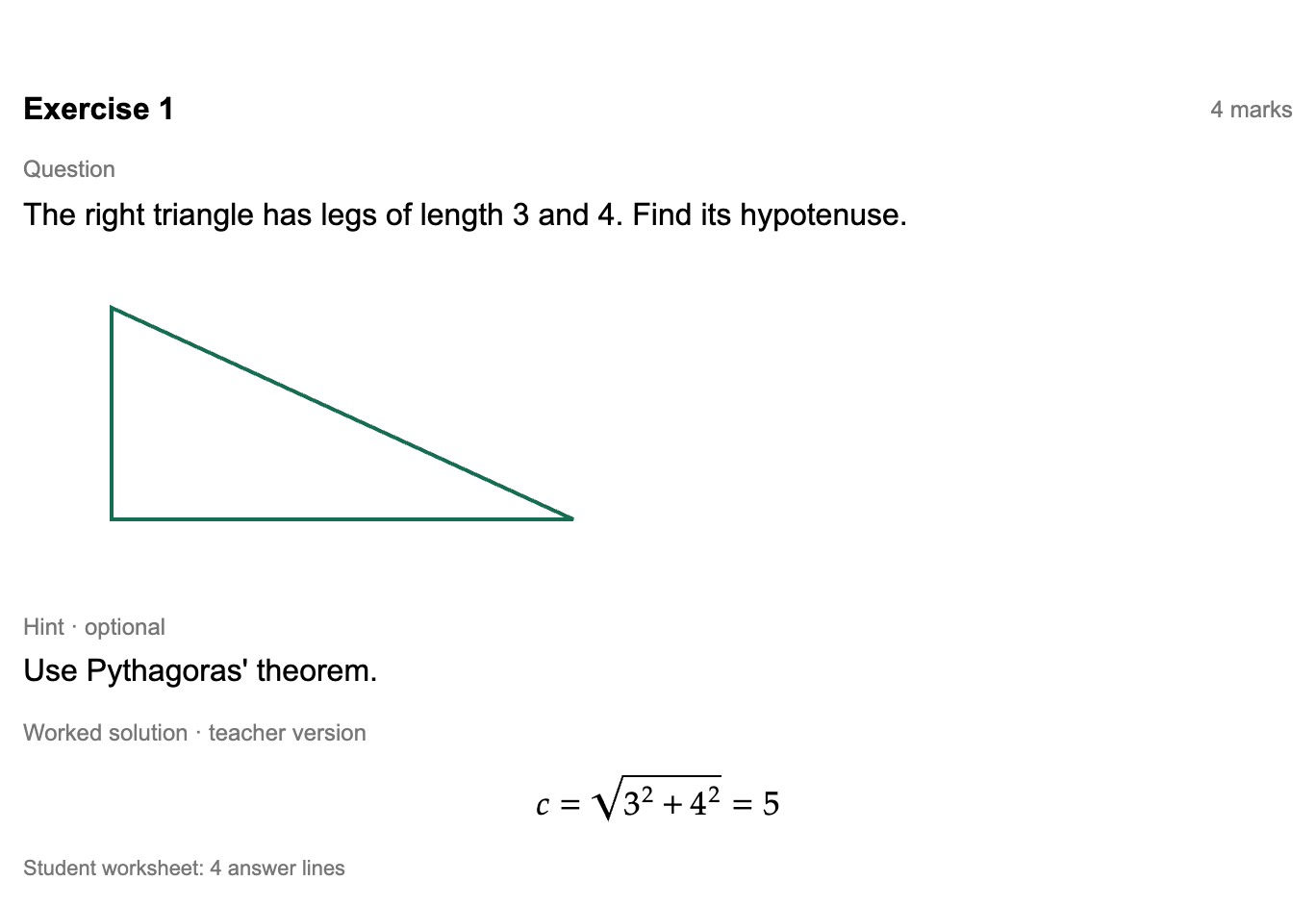
Selected
Section titled “Selected”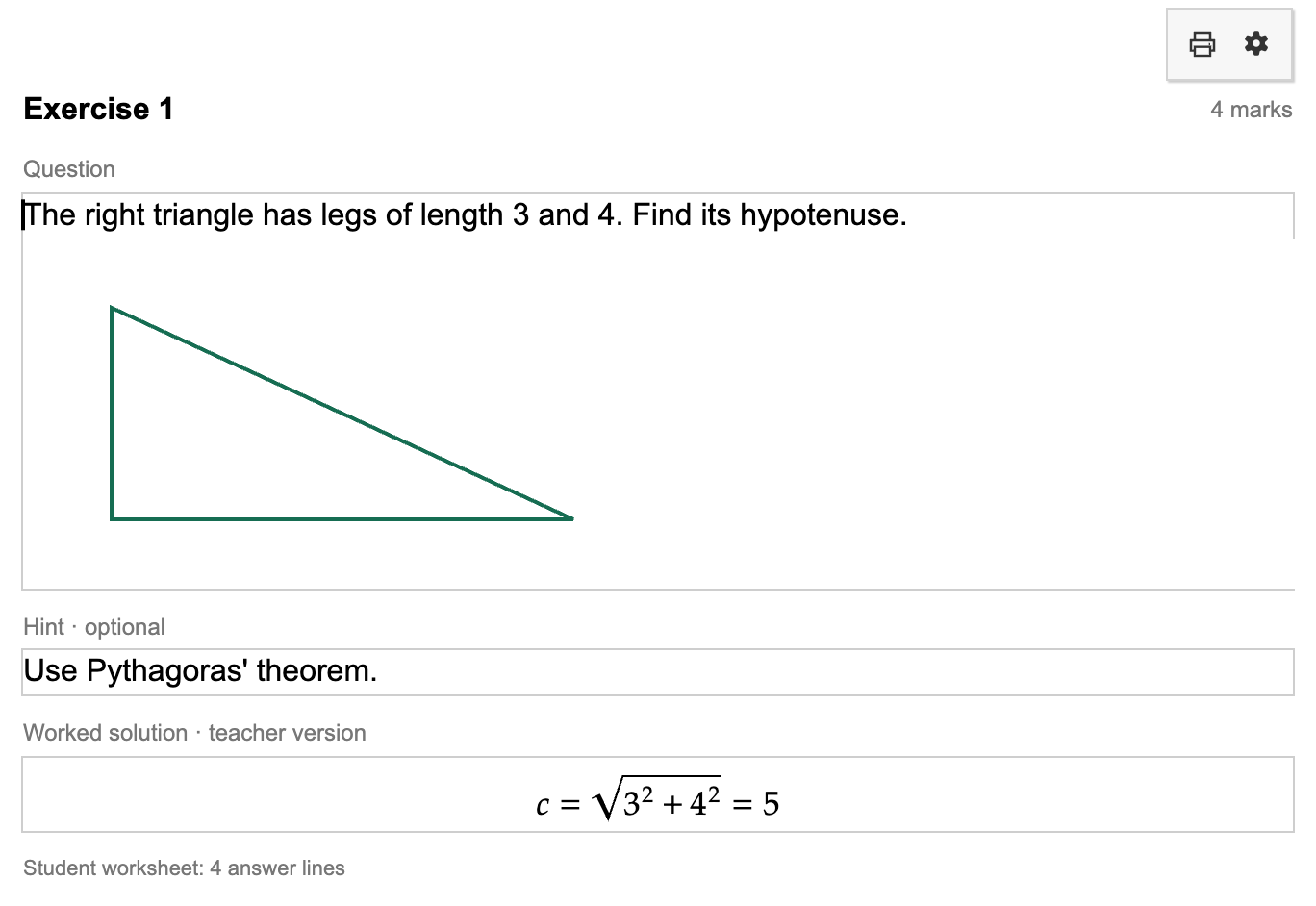
You can also click a label to move the cursor to the beginning of its text area:
| Click | Cursor moves to |
|---|---|
| Exercise heading or marks | Question |
| Question | Question |
| Hint | Hint |
| Worked solution | Worked solution |
| Student worksheet / answer-lines note | Worked solution |
Marks and Answer Lines
Section titled “Marks and Answer Lines”Select the Exercise and click its Exercise settings cog. The settings bar contains Marks, Answer lines, Labels…, and a close × button. Click × to return to the printer and cog buttons.
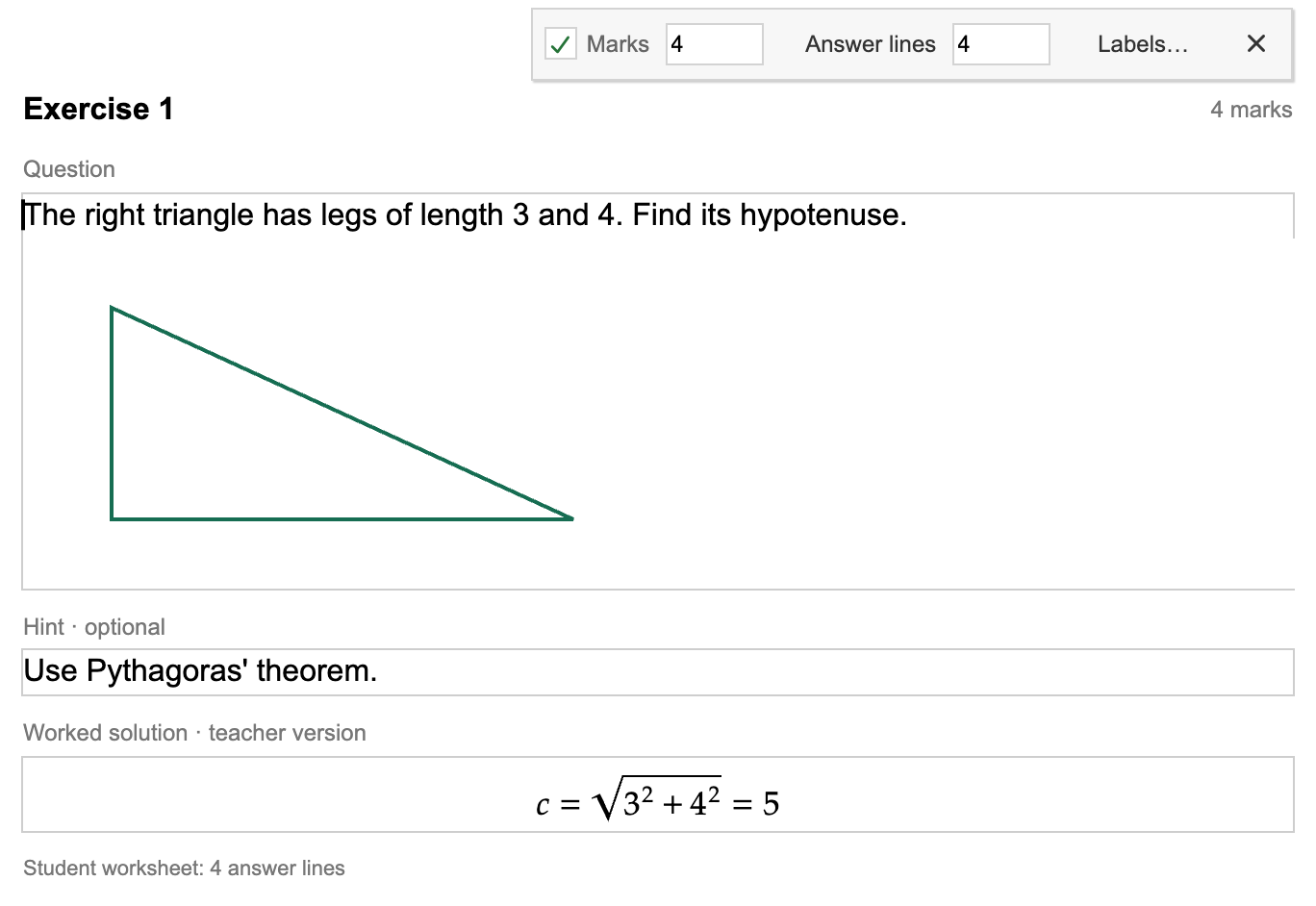
- Turn on Marks to show a mark value for the exercise.
- Enter a nonnegative number. Decimal values such as 2.5 are supported.
- Turn off Marks to remove the value.
- Marks start off for a new Exercise. Turning them on starts the value at 1.
The mark value applies to the whole exercise, including any subparts.
Answer Lines
Section titled “Answer Lines”- Choose a whole number from 0 to 20.
- New exercises start with 4 answer lines.
- Set the value to 0 for no ruled writing space.
These lines appear in student worksheets and worksheets with hints. They do not appear in the teacher answer key.
The note at the bottom of the Exercise shows the configured line count when it is greater than zero. This note is for editing and is omitted from printed output.
Editing Values
Section titled “Editing Values”You can clear and retype a number, use arrow keys to adjust it, and press Tab to move between fields. Focus stays in the number field while its value changes.
A blank value is a temporary editing state. If you leave a field with a blank or invalid value, it returns to the last accepted value. To remove marks, use the checkbox; to remove writing space, enter 0.
Customize Worksheet Labels
Section titled “Customize Worksheet Labels”Use your own wording or another language for exercise headings, hints, solutions, and marks.
- Select any Exercise and open its Exercise settings cog.
- Click Labels… to open Worksheet labels.
- Edit the labels and check the live MathType preview.
- Click Apply to use the labels throughout this document, or Cancel to discard your changes. Save your document as usual to keep the applied changes.
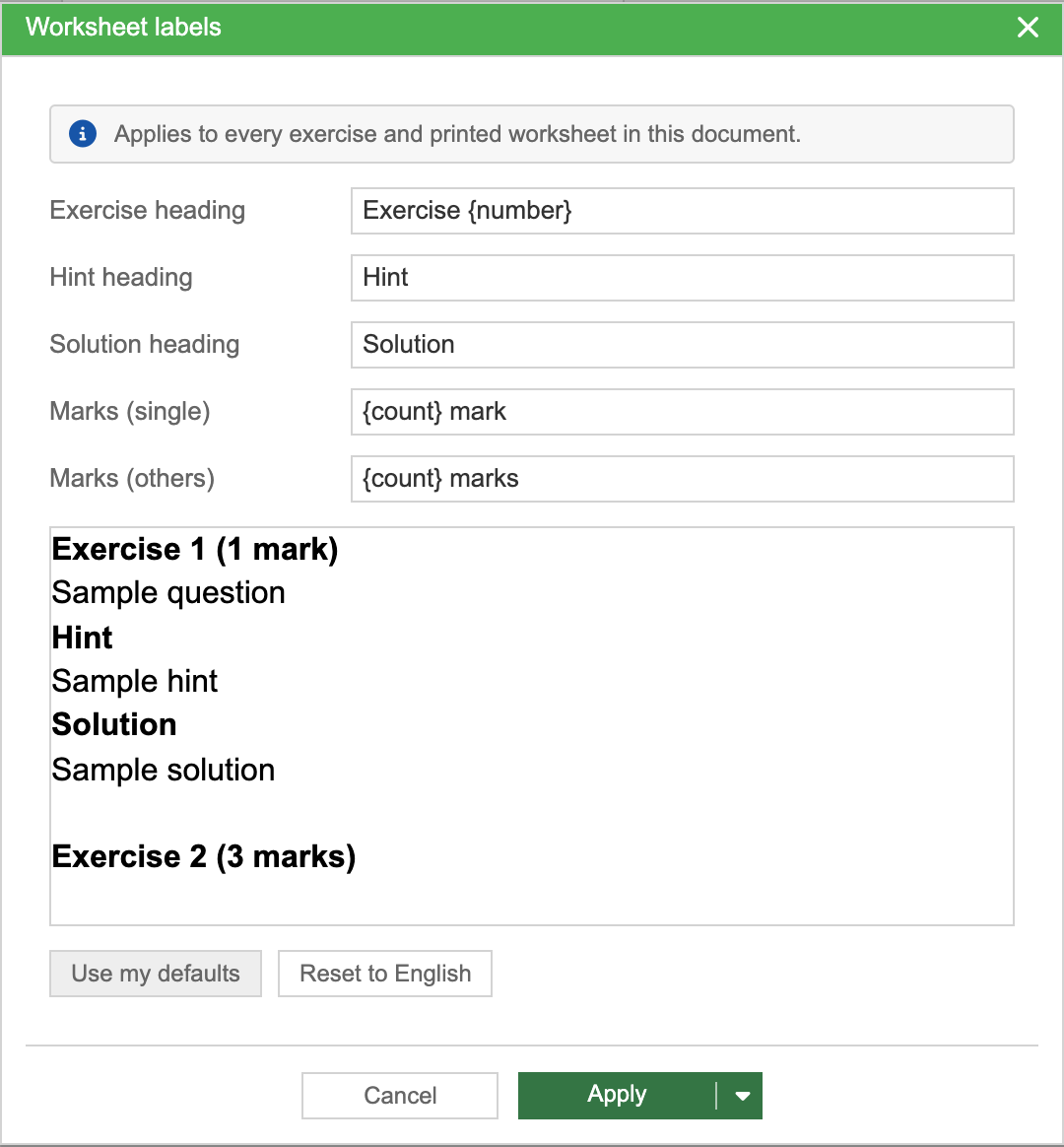
Label Fields
Section titled “Label Fields”| Field | Default | Used for |
|---|---|---|
| Exercise heading | Exercise {number} | The numbered exercise heading. |
| Hint heading | Hint | Hints included in worksheets with hints and teacher answer keys. |
| Solution heading | Solution | Worked solutions included in teacher answer keys. |
| Marks (single) | {count} mark | A mark value of exactly 1. |
| Marks (others) | {count} marks | Every other mark value, including 0, 2, and 2.5. |
Use {number} wherever you want the exercise number, and {count} wherever you want the mark value. You can change the surrounding words or their order. The labels are plain text.
No language code is needed. If your language uses the same wording for both mark forms, enter the same template in both fields. For example:
| Field | Example |
|---|---|
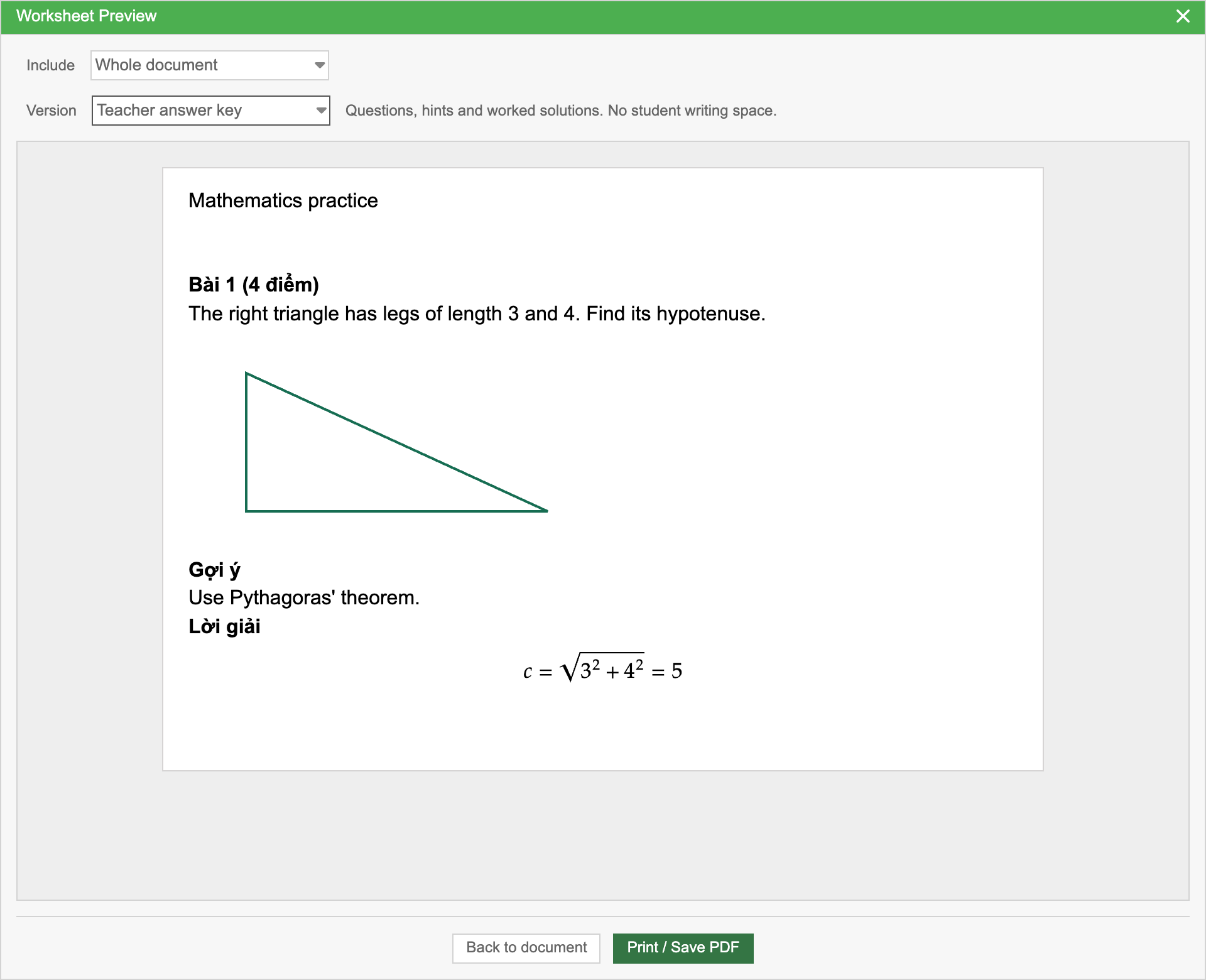
| Exercise heading | Bài {number} |
| Hint heading | Gợi ý |
| Solution heading | Lời giải |
| Marks (single) and Marks (others) | {count} điểm |
The preview is read-only and updates as you type. It shows sample content with both mark forms using your document’s fonts. To edit a label, use its input field above the preview.
These labels apply to every exercise in this document, including exercises added later. Exercise headings and mark values in the editor follow the mapping too. The dialog buttons and the rest of the editor interface keep their usual wording.
Defaults for New Documents
Section titled “Defaults for New Documents”| Control | Result |
|---|---|
| Apply | Applies the labels to the current document. |
| Apply dropdown → Save and Set as default for New document | Applies the labels here and saves them to your account for future new documents. |
| Use my defaults | Copies your saved label defaults into the dialog. Click Apply to use them in this document. Available after you have saved label defaults. |
| Reset to English | Restores the English label templates in the dialog. Click Apply to keep them. |
| Cancel, the close ×, or Escape | Closes the dialog without applying the draft. |
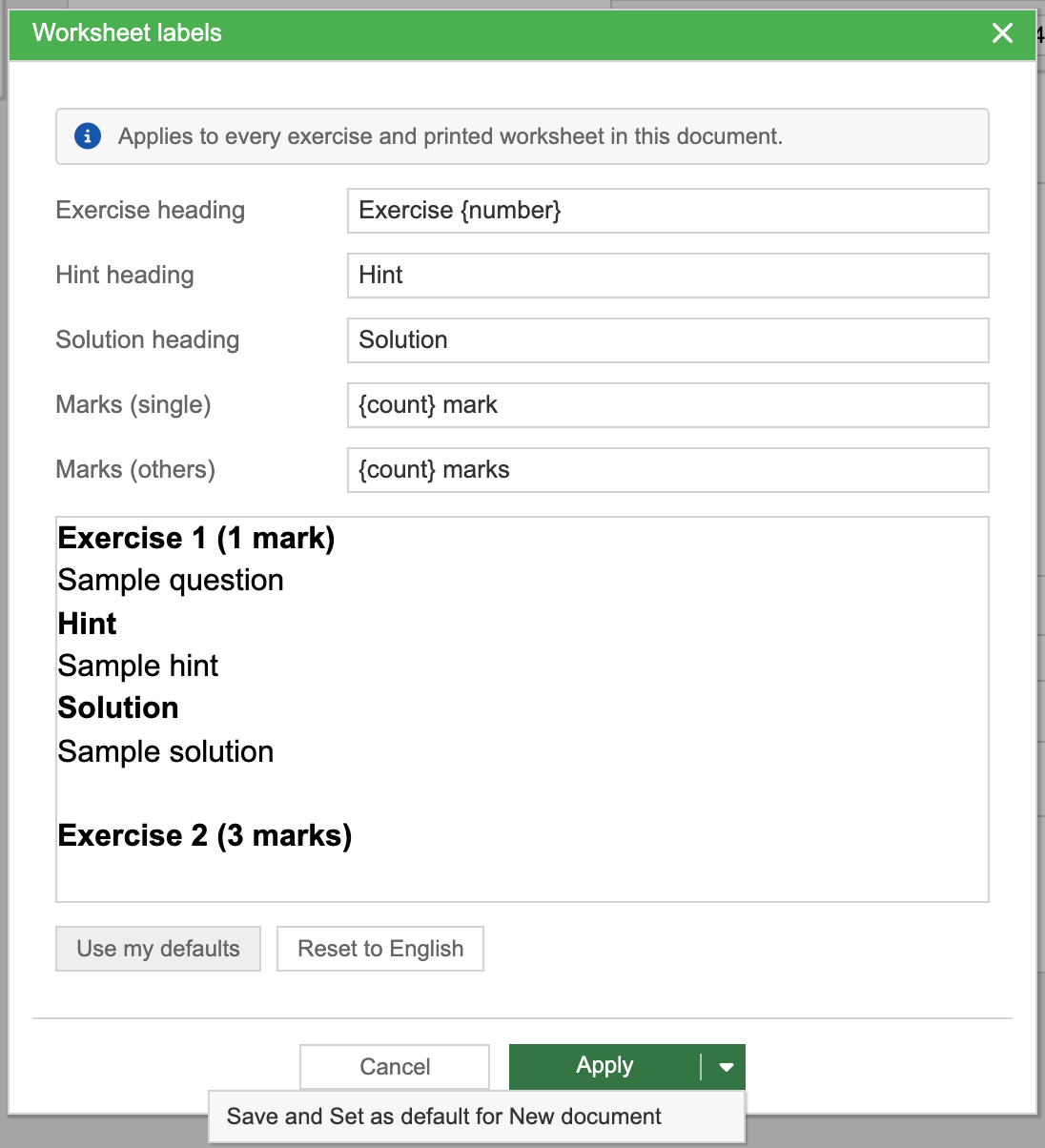
Changing your account defaults does not rewrite existing documents. Each document keeps its own labels, including when another person opens or prints it. Saving label defaults also preserves your other new-document preferences.
While saving account defaults, a progress separator appears and Apply, Cancel, and closing are temporarily disabled. If saving fails, an error note appears and your draft stays available to retry.
Printed Example with Custom Labels
Section titled “Printed Example with Custom Labels”The same mapping is used in Worksheet Preview and printed/PDF worksheets. Student worksheets still omit hints and solutions; changing labels does not change which content is included.
Preview a Worksheet or Answer Key
Section titled “Preview a Worksheet or Answer Key”- Select an Exercise.
- Click its floating Print exercise printer icon. If the settings bar is open, close it with × first.
- In Worksheet Preview, choose Include and Version.
The preview starts with Whole document and Student worksheet. It is read-only; changing its options does not change the source document.
Choose What to Include
Section titled “Choose What to Include”| Include | Result |
|---|---|
| Whole document — default | Includes the surrounding document content and all exercises. The chosen version applies to each exercise. |
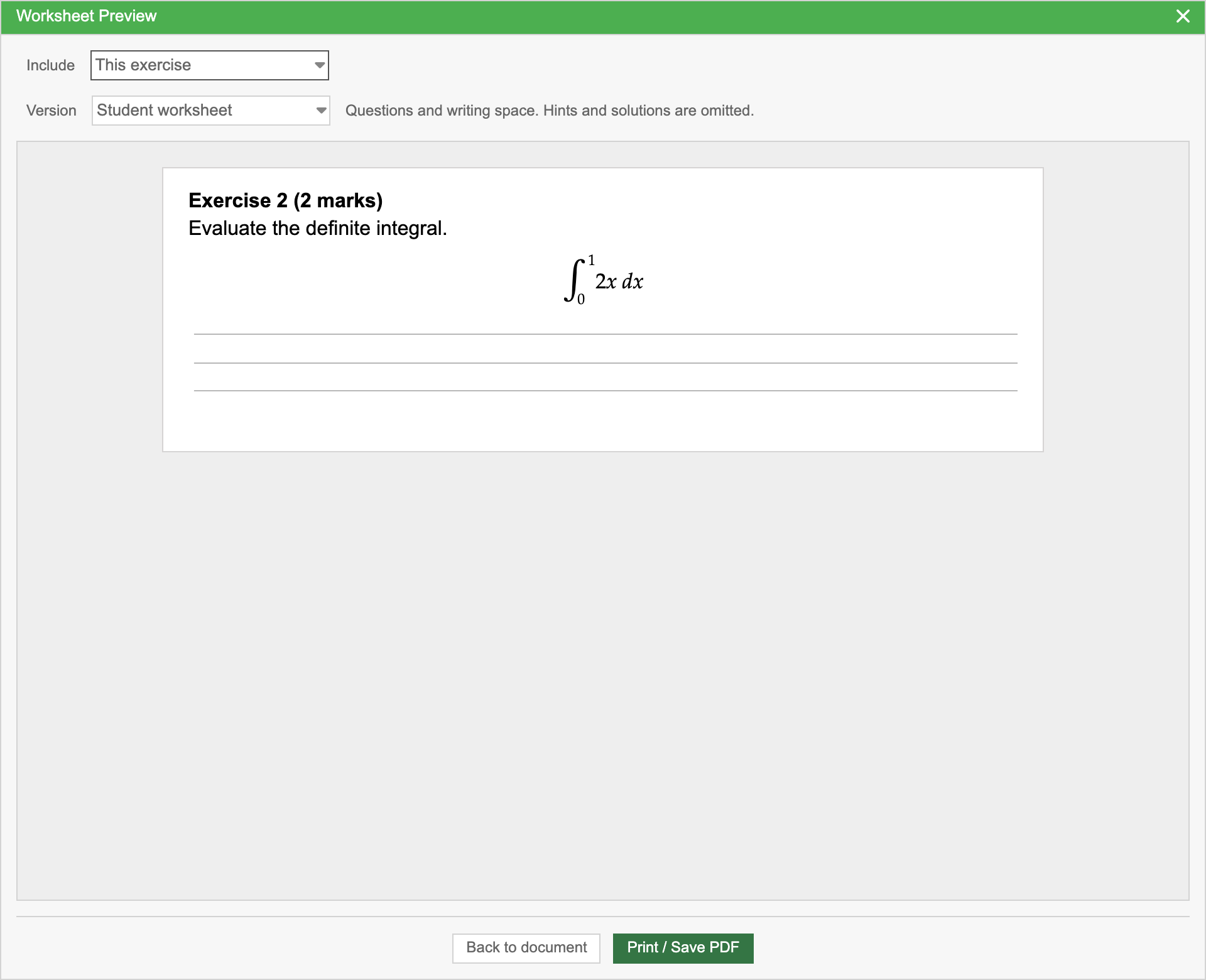
| This exercise | Includes only the exercise whose Print button you clicked. Its original exercise number and marks are preserved. |
For example, selecting This exercise from Exercise 2 prints Exercise 2 on its own:
Choose a Version
Section titled “Choose a Version”| Version | Questions and marks | Hints | Worked solutions | Answer lines |
|---|---|---|---|---|
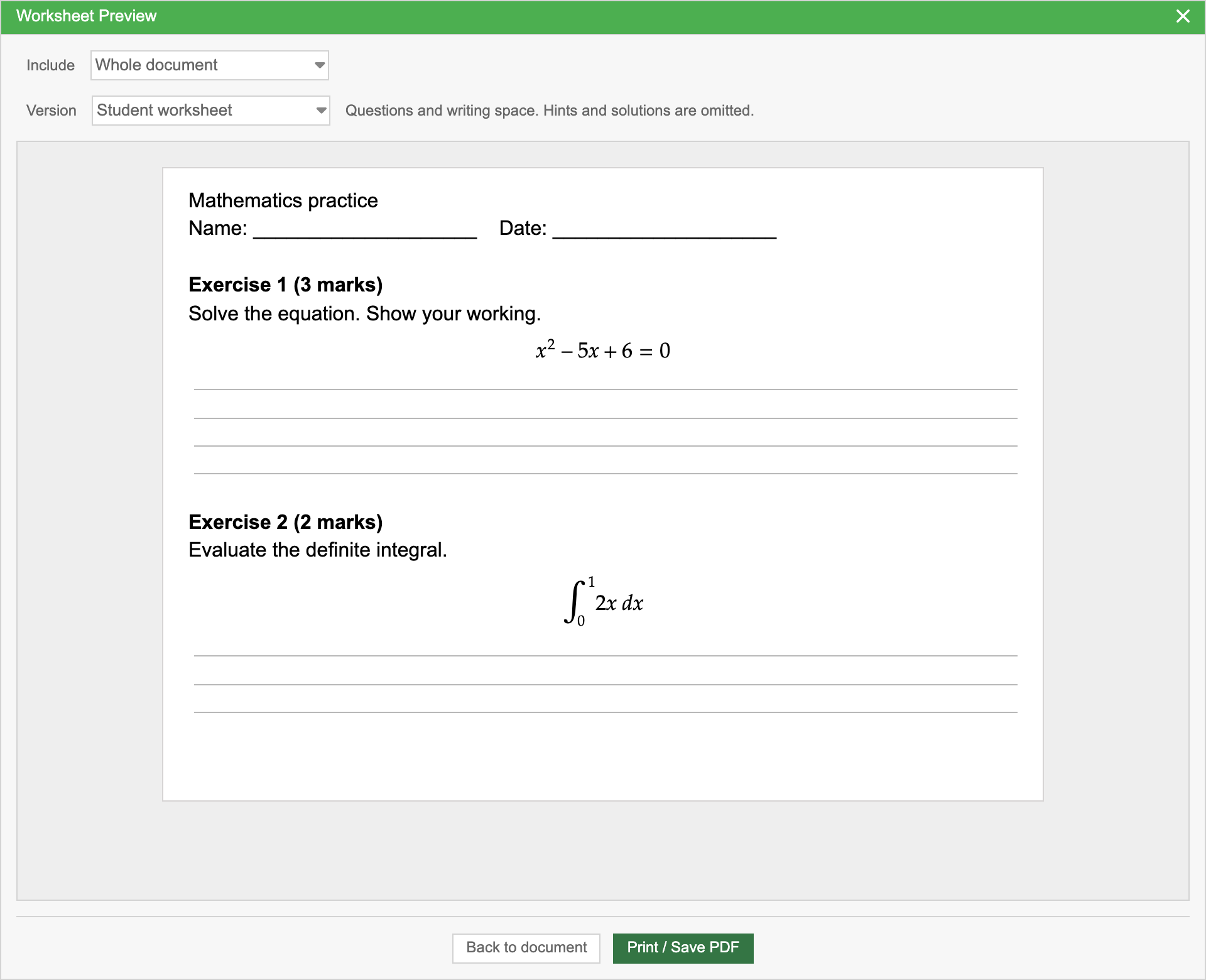
| Student worksheet — default | Yes | No | No | Yes |
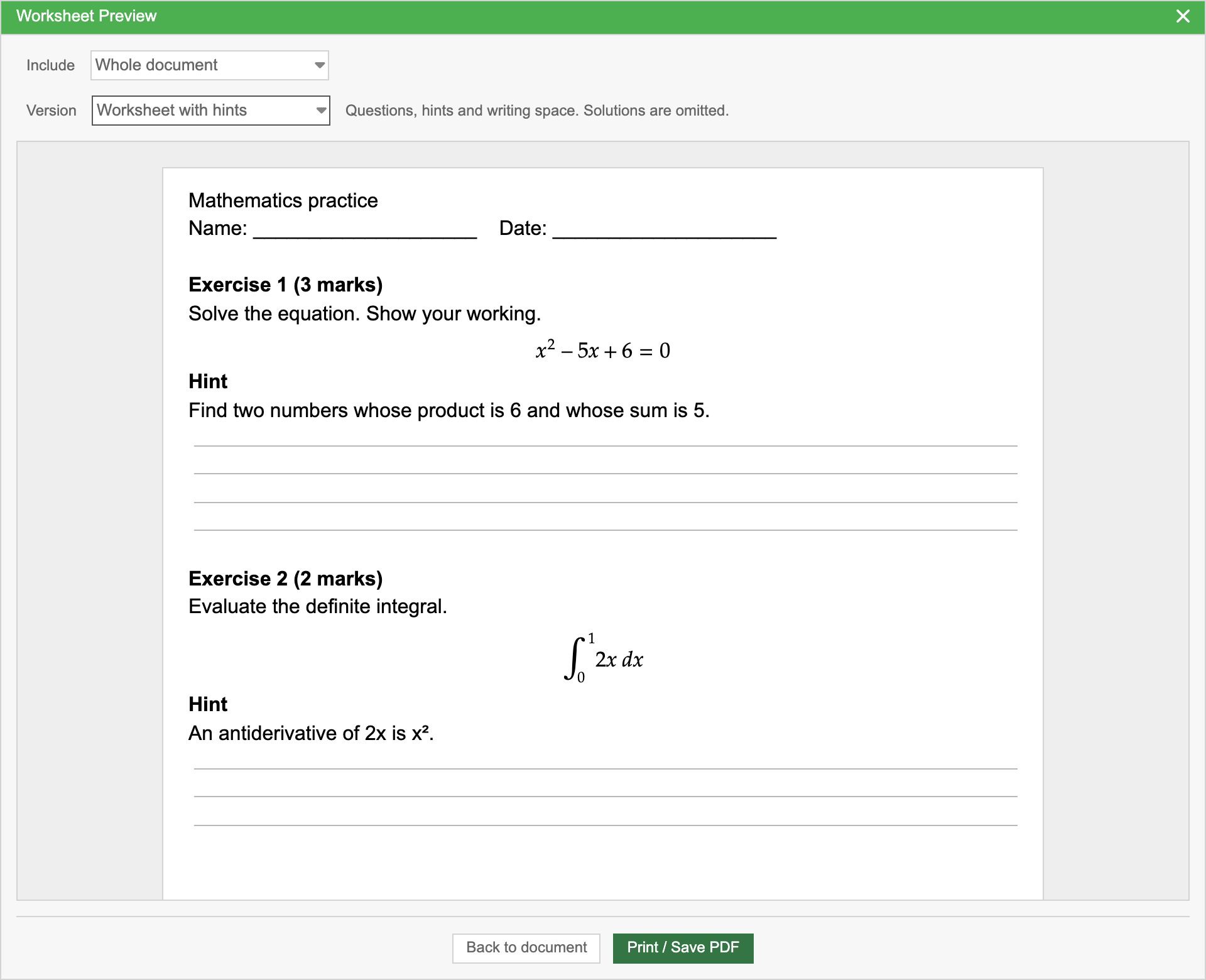
| Worksheet with hints | Yes | When entered | No | Yes |
| Teacher answer key | Yes | When entered | When entered | No |
Marks appear only when enabled. Answer lines appear only when their configured count is greater than zero. Empty hints and solutions do not add empty headings to the output.
Student Worksheet
Section titled “Student Worksheet”Questions and writing space are included. Hints and solutions are omitted.
Worksheet with Hints
Section titled “Worksheet with Hints”Questions, hints, and writing space are included. Solutions are omitted.
Teacher Answer Key
Section titled “Teacher Answer Key”Questions, hints, and worked solutions are included, without student writing space.
See the teacher answer-key example at the beginning of this guide.
Press Escape or choose Back to document to close Worksheet Preview.
Print or Save as PDF
Section titled “Print or Save as PDF”From Worksheet Preview, click Print / Save PDF to open the usual Print Settings.
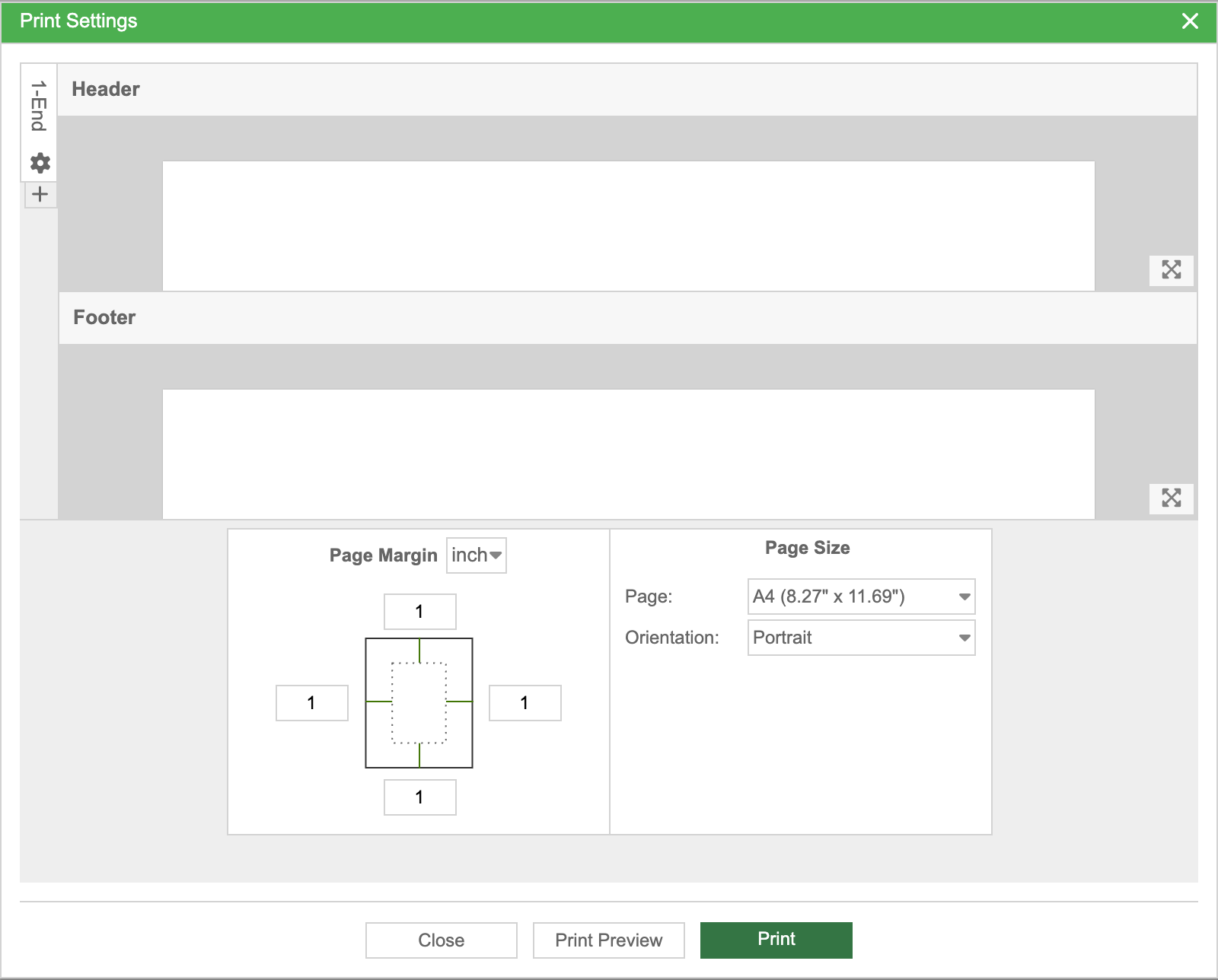
Choose paper size, orientation, margins, headers, and footers as needed. Click Print Preview to inspect the page layout, then Print.
To save a PDF, choose Save as PDF in your browser’s print dialog. Long worksheet questions and worked solutions can continue across pages. Exercise controls and Settings are excluded from printing.
See Printing for the full print settings guide.
Saving, Copying, and Sharing
Section titled “Saving, Copying, and Sharing”Exercises are saved with the rest of your document, including all three content sections, marks, and answer-line settings. Worksheet label mappings are saved with the document too. Normal copy/paste and undo/redo work with exercise content.
A .mathcha export preserves the complete Exercise source. See Mathcha File (.mathcha).
Source LaTeX export includes question, hint, and solution content. Separate student/teacher HTML and LaTeX exports are not available.