Document Settings
Go to Menu->Document Settings
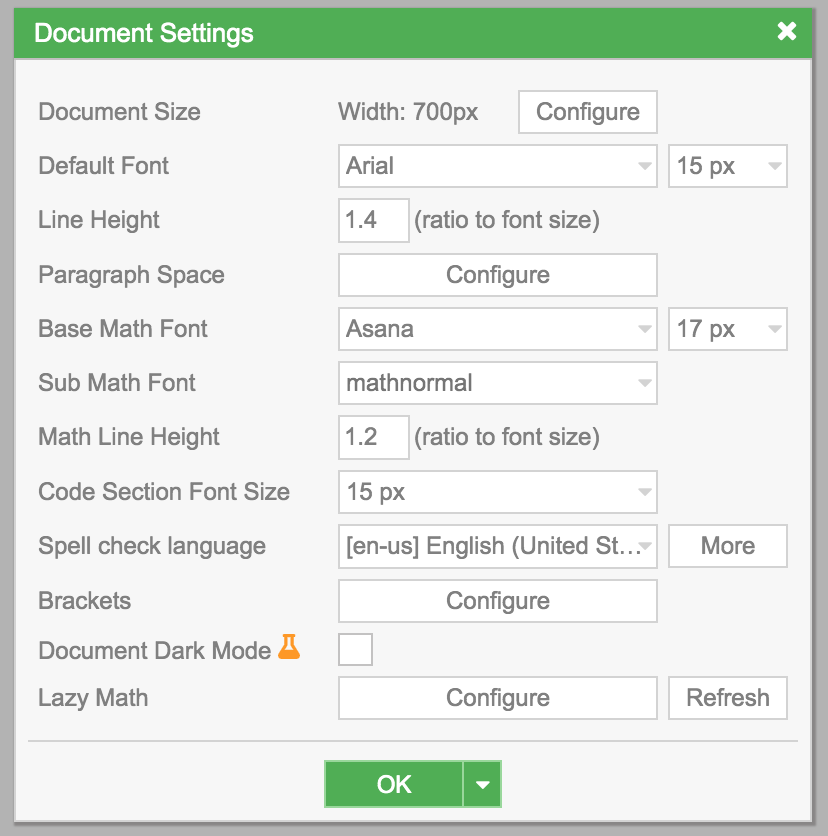
Document Size
Section titled “Document Size”- Select
Document Size->Configure
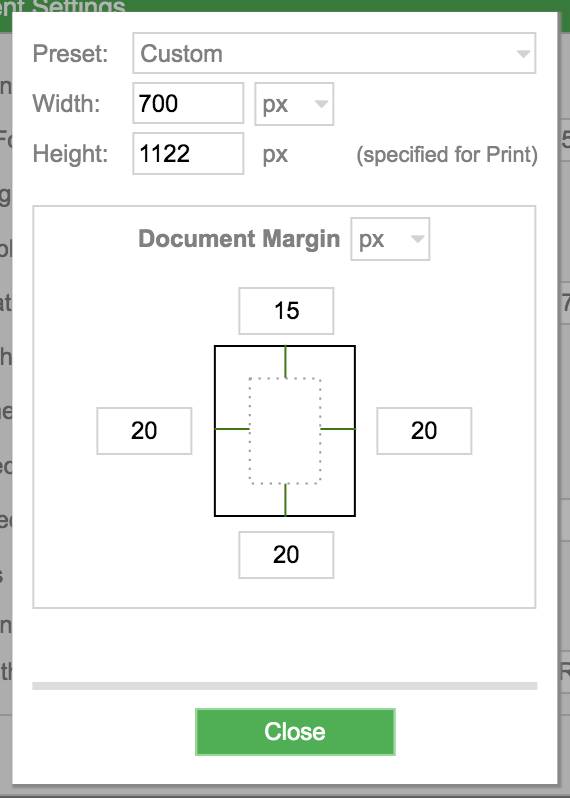
-
Default Font: specifies the font and font size for the whole document (Text Modeonly). -
Line Height: specifies the minimum height for each line inText Modeonly. The unit isRatio to Font Size . -
Paragraph Space->Configure
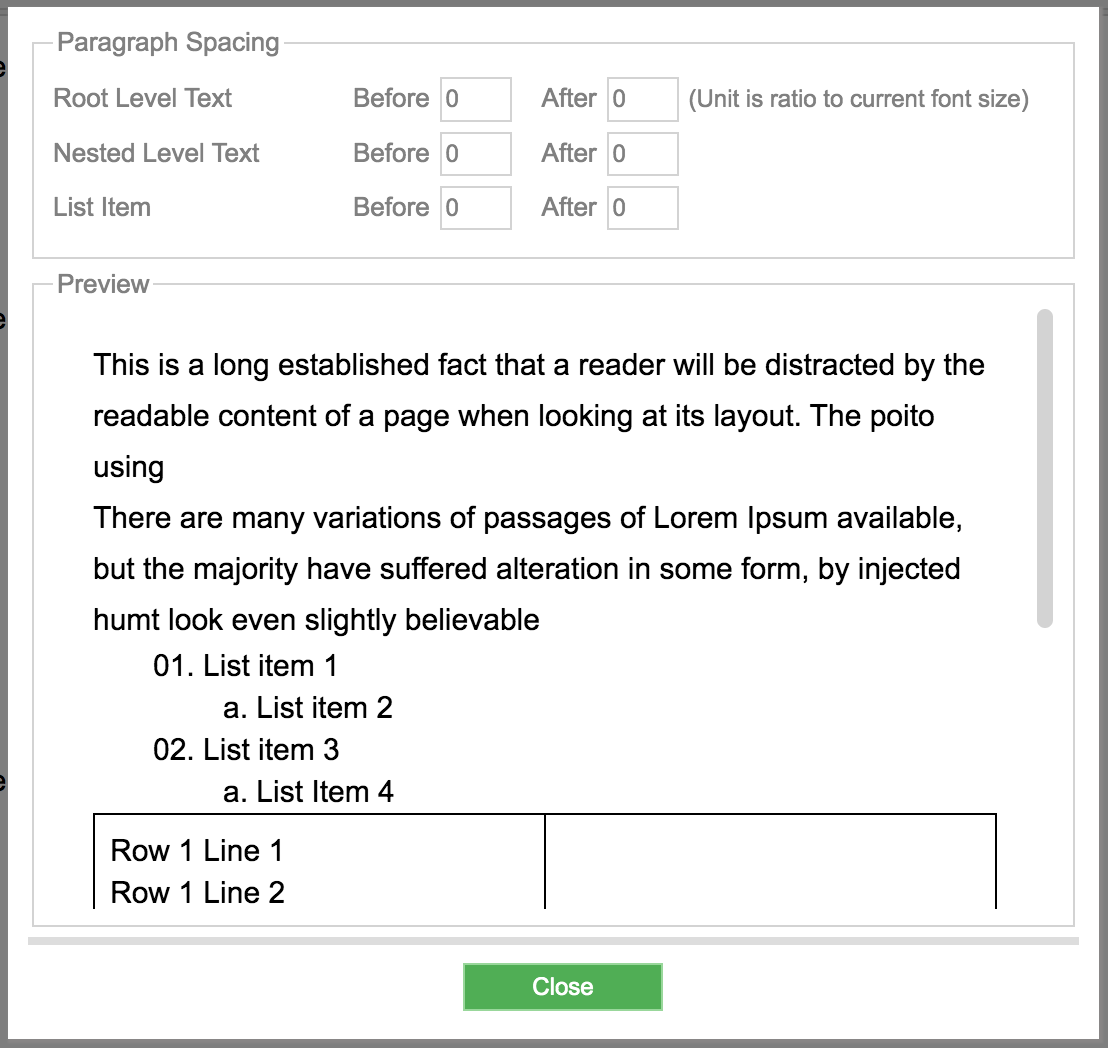
-
Every time you press
Enter, a new paragraph is created. This option lets you specify the spacing between paragraphs. It only applies toText Mode. There are 3 types:- Any Paragraph in
Root Level, more info onRoot Level - Any Paragraph in
Nested Level, which is anyText Modenot inRoot Level - Spacing between
List Item
- Any Paragraph in
-
Base Math Font: selects the font for the whole document, applied toMath Mode. Browse the Math Fonts specimens to compare all supported fonts through grouped examples.
Sub Math Font: users rarely need to change this option.Math Line Height: specifies the minimum height for each line inMath Mode. The unit isRatio to Font Size .
Worksheet Labels
Section titled “Worksheet Labels”Exercise worksheet labels are configured from an Exercise’s settings bar: select an Exercise, click its Exercise settings cog, then Labels….
Set the exercise, hint, solution, and marks wording for the whole document. Apply applies the labels to this document; save the document as usual to keep the changes. The Apply dropdown also offers Save and Set as default for New document for future new documents.
See Exercise → Customize Worksheet Labels for the label fields, live preview, and default controls.